Sign in
One account, two ways in — a passkey (face, fingerprint or PIN) or your password — and what each sign-in notice means.
You have one account and two ways to open it: a passkey, which signs you in with your face, fingerprint or device PIN, or your email and password. A passkey only works once Scott has linked it to your account; until then, use your password. Whichever way you sign in, check the name the app shows you — on a shared phone it is easy to open someone else's account.
1. Open the app
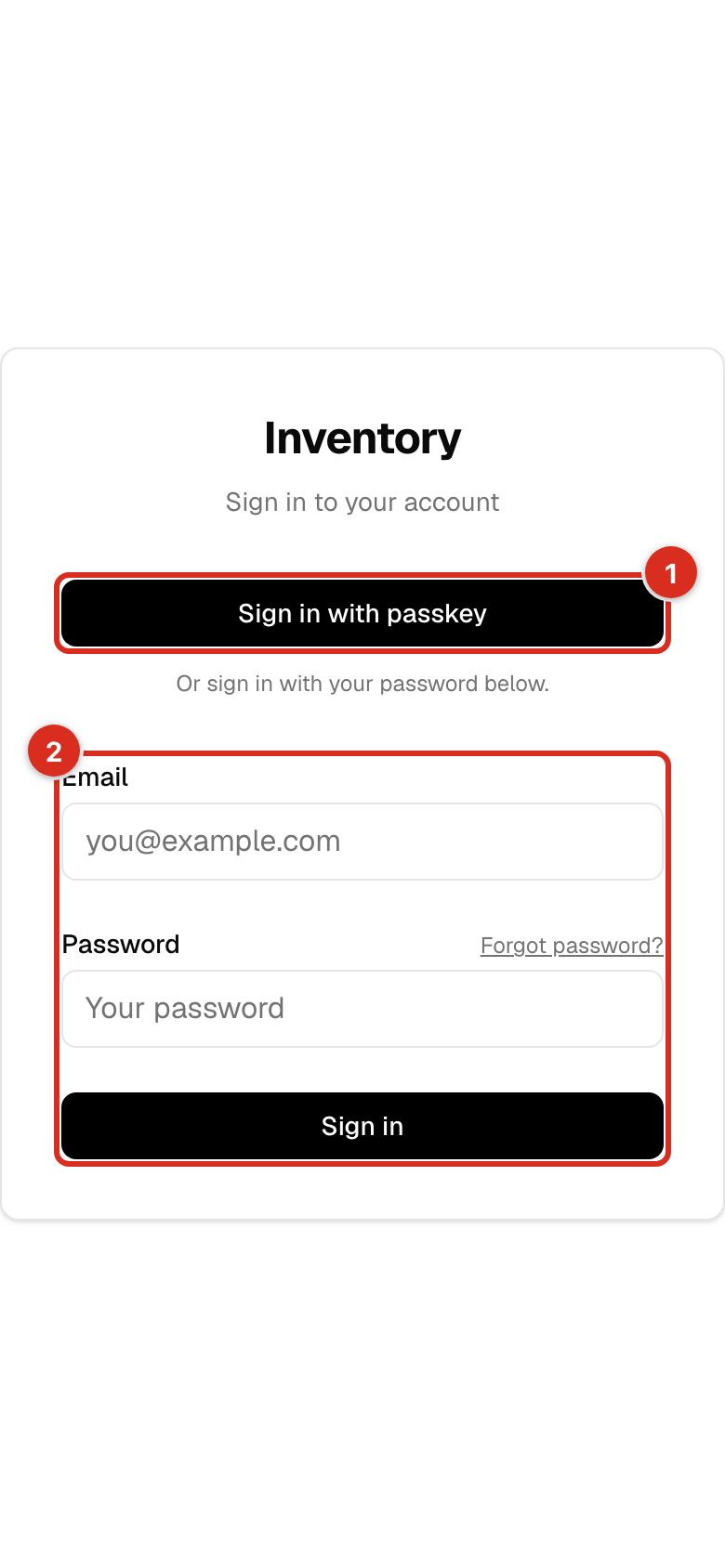 The sign-in screen with the passkey button and the password form highlighted
- Sign in with passkey uses the passkey on this phone or computer.
- The password form below works for every account, passkey or not.
2. Tap Sign in with passkey
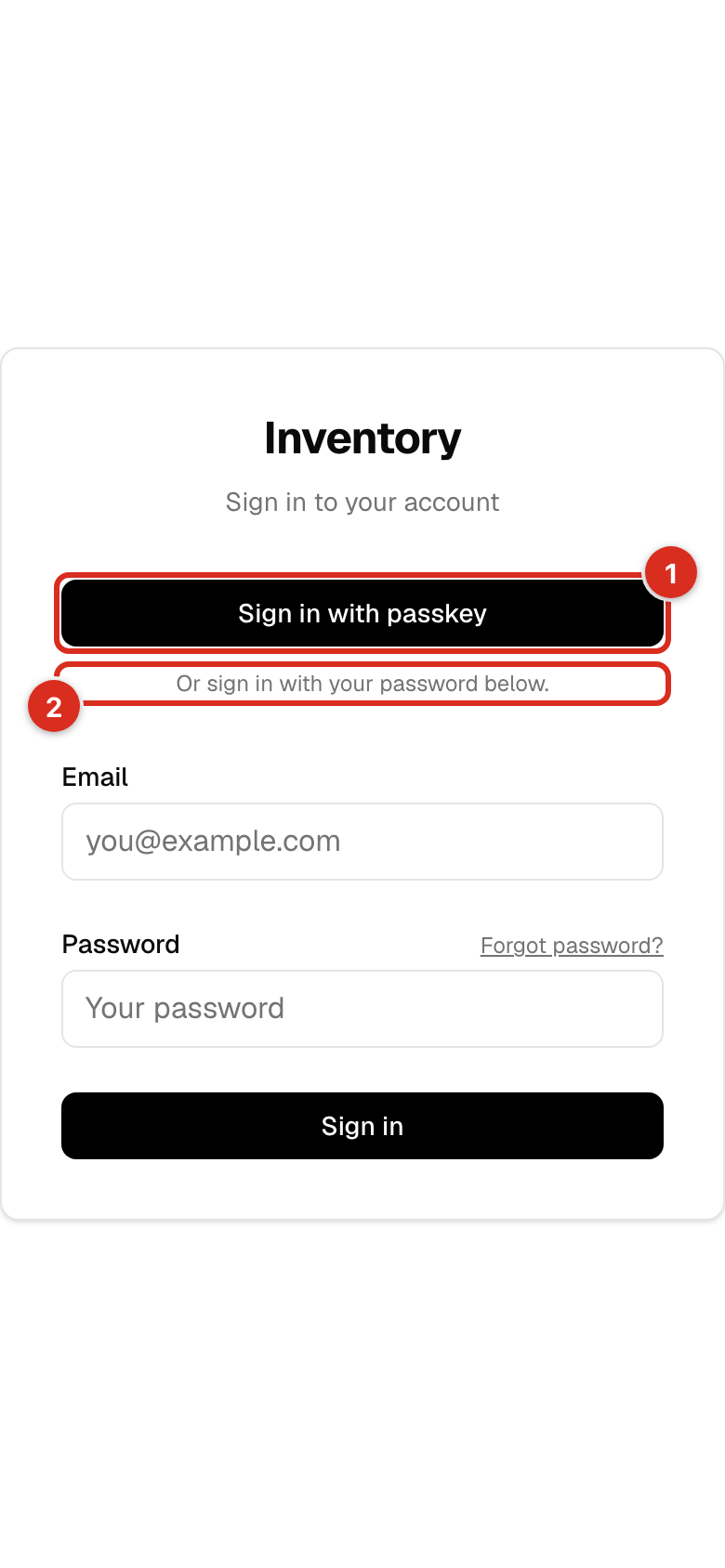 The passkey button and the hint beneath it
- In the phone app this opens a secure sign-in sheet that starts with no saved sign-in, so it asks for your face, fingerprint or PIN every time. If the phone's browser cannot start a fresh sheet and still remembers an earlier sign-in, the app refuses to reuse it and shows a notice asking you to use your password instead (see step 8). On the web it opens the sign-in service in the same tab.
- The line under the button reminds you that your password still works if the passkey does not.
3. Confirm with your face, fingerprint or PIN
The phone's own prompt appears over the app (it belongs to the phone, so there is no picture of it here). Look at the camera, touch the sensor, or type your device PIN if no biometric is set up — a PIN is still a passkey sign-in. If the phone offers more than one passkey, pick your own: another person's passkey signs in as that person, and the next step shows whose account you opened.
4. Check who is signed in
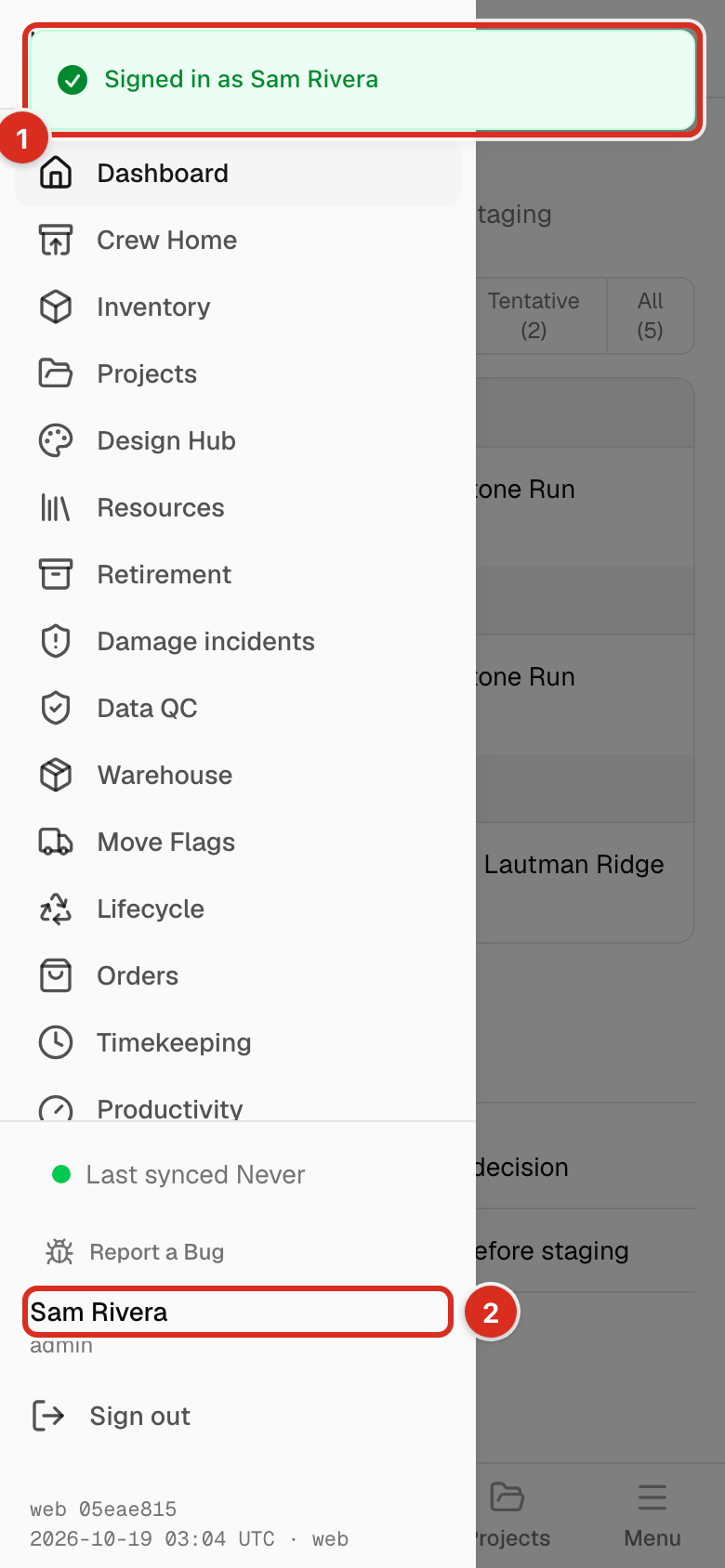 The dashboard with the "Signed in as" message and the name in the menu highlighted
- Signed in as … appears once, right after a passkey sign-in. If it is not your name, open the menu and tap Sign out, then sign in again with your own passkey.
- Your name and role stay in the Menu drawer (phone) or the sidebar (computer) the whole time you are signed in.
5. Or sign in with your password
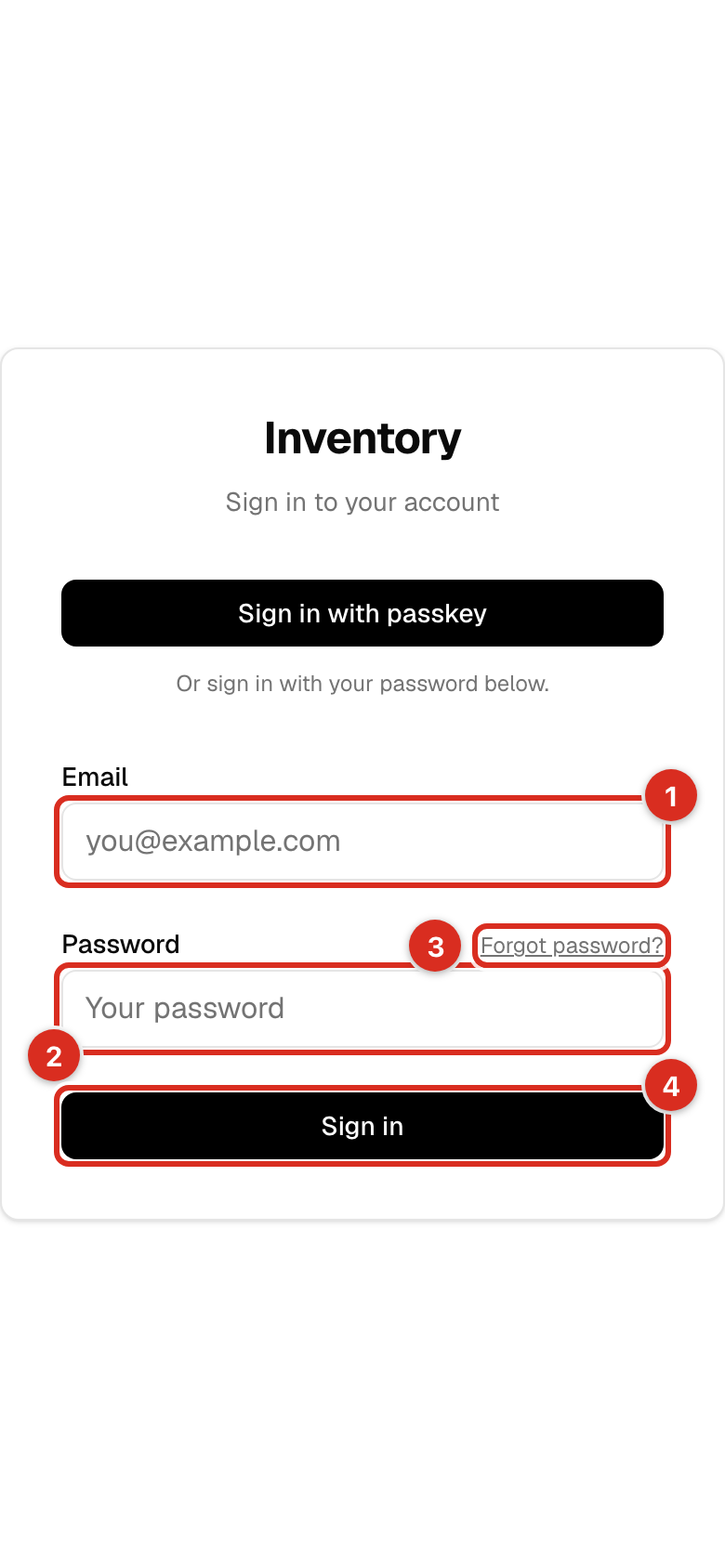 The password form with email, password, Forgot password and Sign in highlighted
- Email — the address your account was created with.
- Password — your password.
- Forgot password? sends a reset link to that email.
- Sign in opens the app.
If something goes wrong
Every notice is fixed text; the app never shows raw error messages from the sign-in service. Each one has a way through.
6. "Passkey sign-in did not complete" — ask Scott
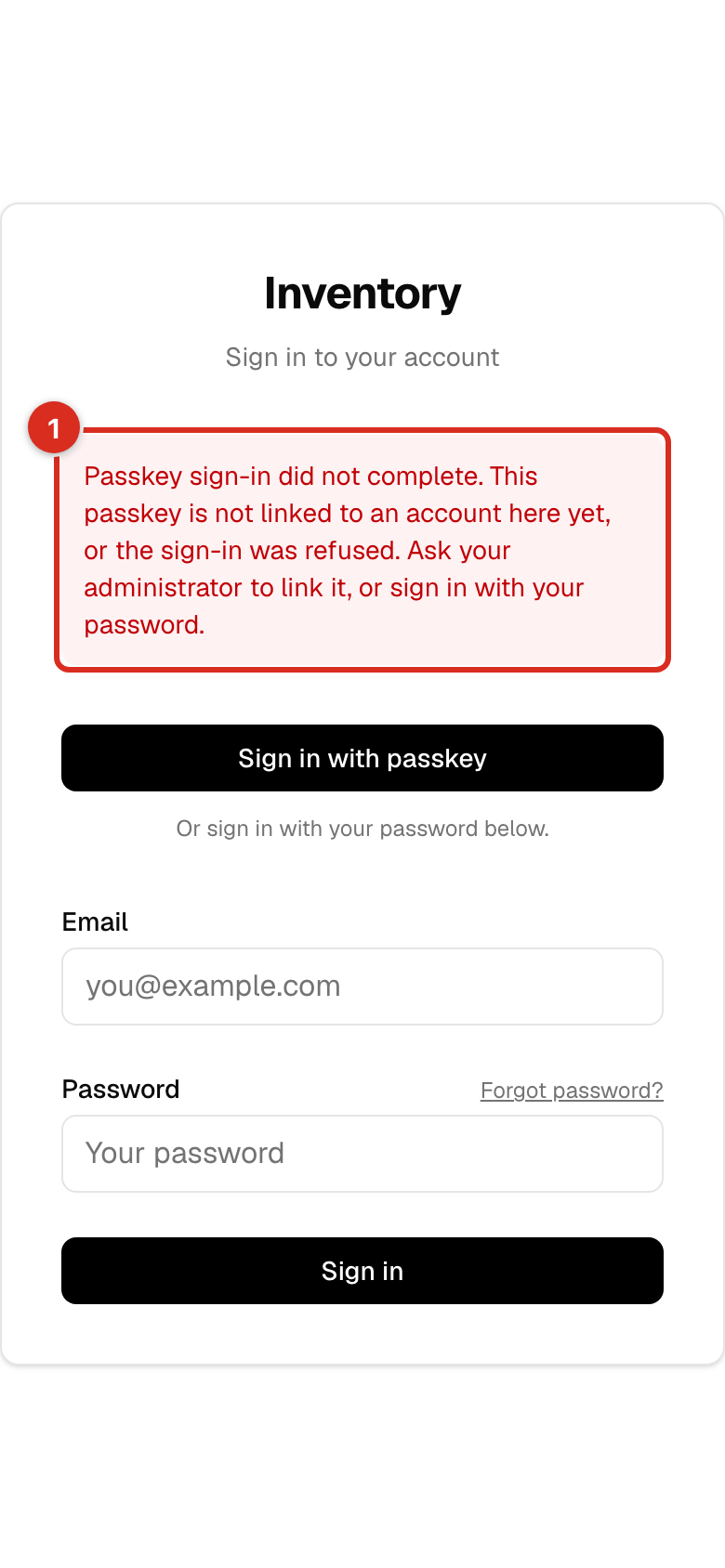 The not-linked notice on the sign-in screen
- Passkey sign-in did not complete. This passkey is not linked to an account here yet, or the sign-in was refused. Ask your administrator to link it, or sign in with your password. Your passkey works, but nobody has linked it to an account in this app. Sign in with your password now and ask Scott to link the passkey.
7. "Passkey sign-in was cancelled" — tap again
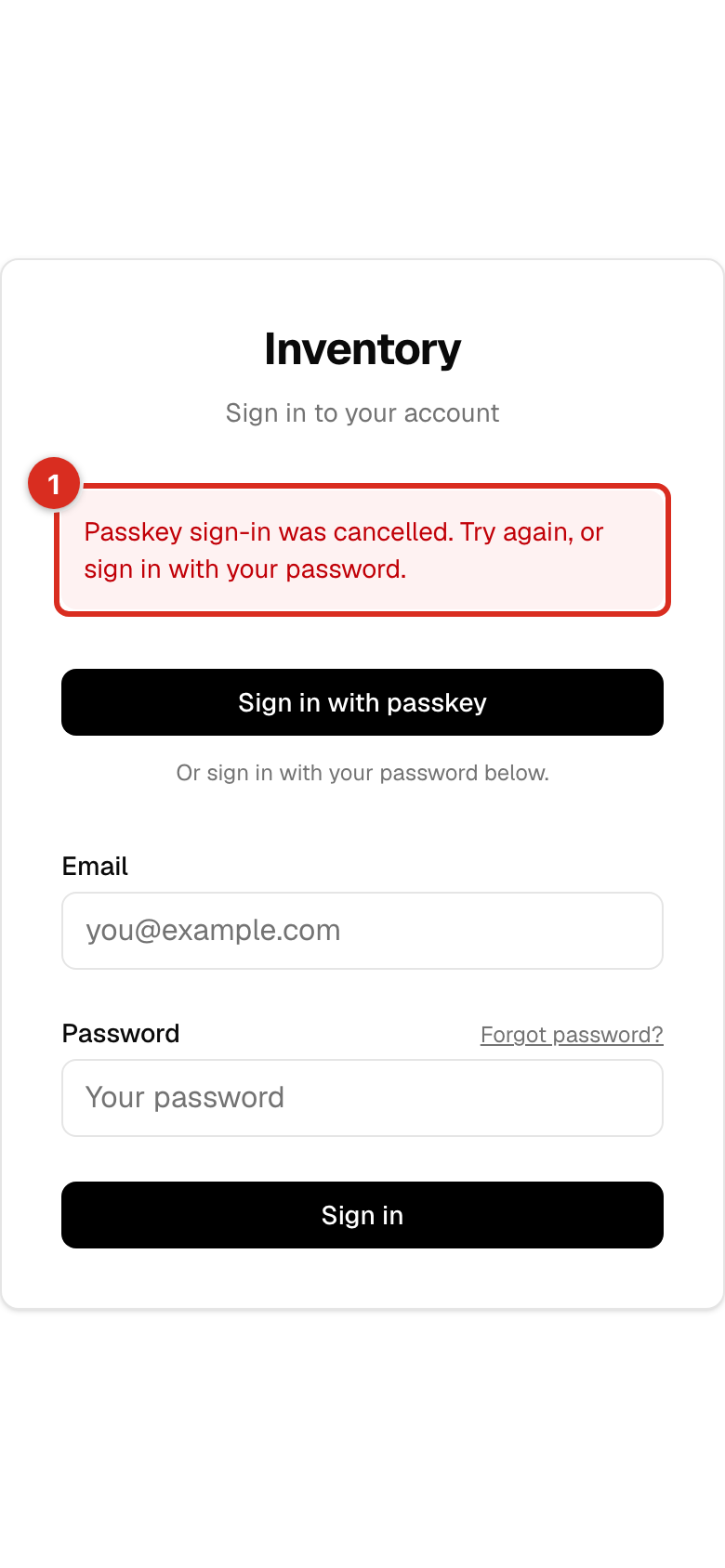 The cancelled notice on the sign-in screen
- Passkey sign-in was cancelled. Try again, or sign in with your password. You closed the sheet, the phone's prompt was dismissed, or the app was reset while the sheet was open. Tap Sign in with passkey again. The same message appears as a short hint under the button when you close the sheet yourself.
8. "Could not start a fresh browser session" — use your password
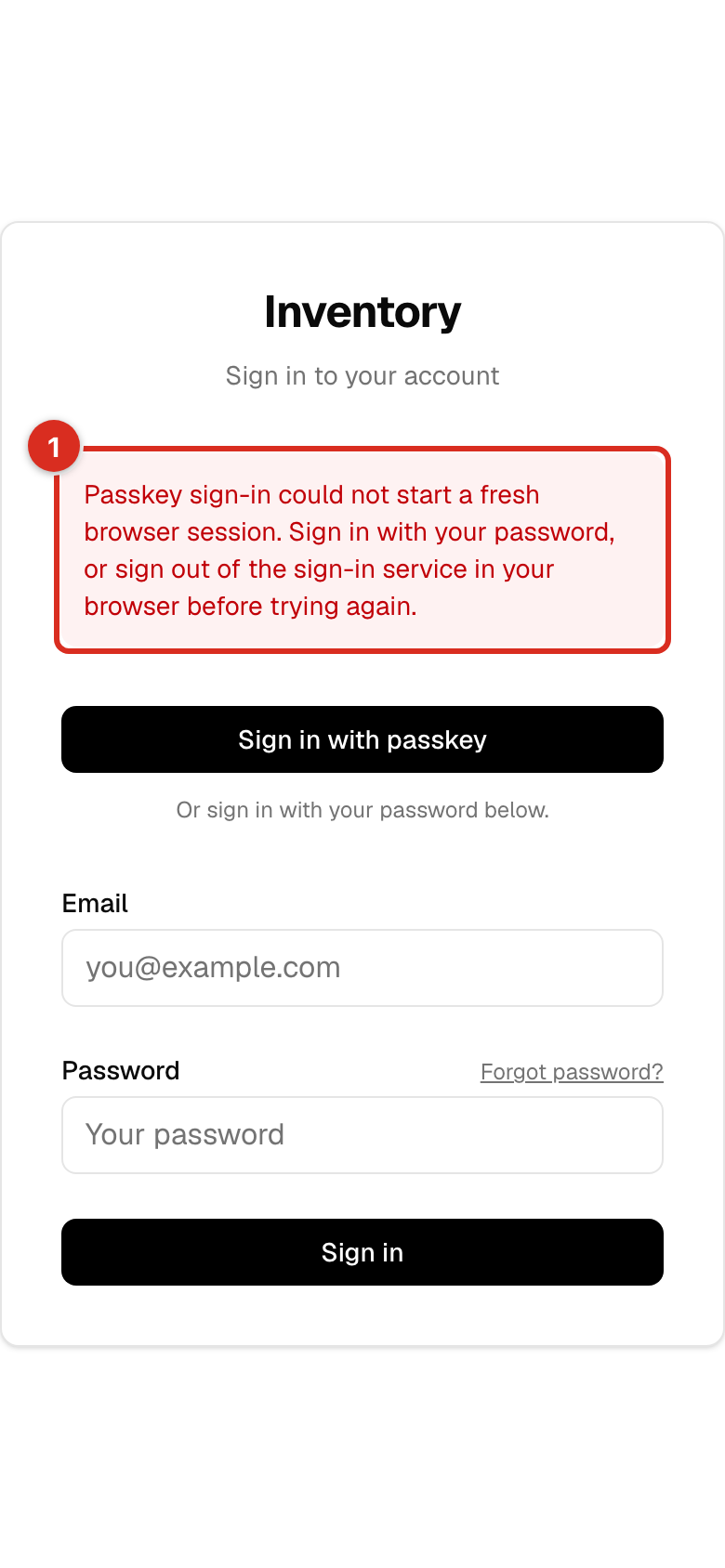 The session notice on the sign-in screen
- Passkey sign-in could not start a fresh browser session. Sign in with your password, or sign out of the sign-in service in your browser before trying again. The phone's browser still holds an earlier sign-in, so the app refused to guess who you are. Sign in with your password, or open your phone's browser, sign out of the sign-in service there, and try the passkey again.
9. No passkey on this phone
The sign-in sheet shows the sign-in service's own "no passkey" screen instead of a prompt. Close the sheet — the cancelled hint appears under the button — and sign in with your password. The same happens if the sign-in service itself is unreachable: close the sheet and use your password. Ask Scott if you want a passkey on this phone.
10. No Sign in with passkey button
The sign-in screen shows only the password form. Either the app on this phone is an older build or passkey sign-in is switched off for now. Sign in with your password; if you expect a passkey button in the phone app, update the app from the app store or test-flight program.
11. "Can't reach the server" — tap Reload
 The can't-reach-the-server page with the Reload button highlighted
- Reload tries the server again. If you were in the middle of a passkey sign-in, it picks up where it left off for up to ten minutes; after that, or if you land back on the sign-in screen, simply sign in again.
Two more hints can appear under the passkey button: Passkey sign-in could not start. Try again, or use your password. and Passkey sign-in timed out. Try again, or use your password. Both mean exactly that — tap again, or use the form.
Next: Getting started.
Updated Oct 19, 2026